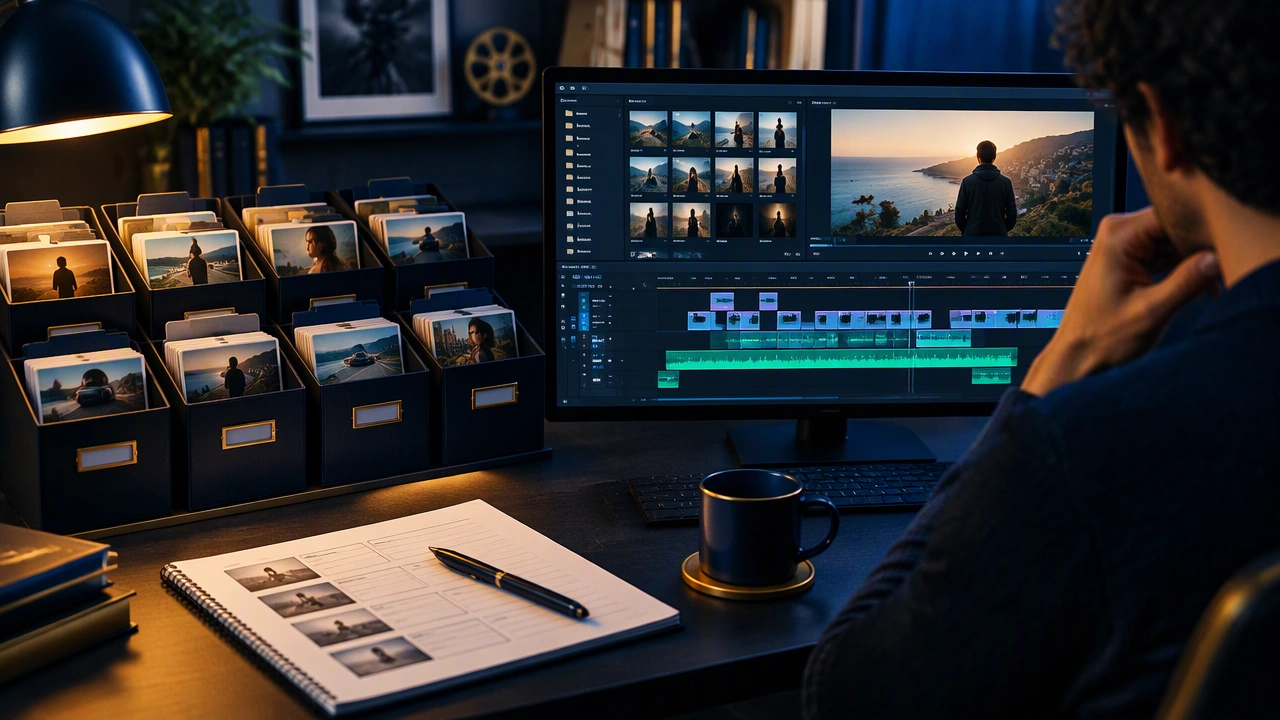
How to Organize Footage Bins and Timelines for Faster, Safer Film Editing
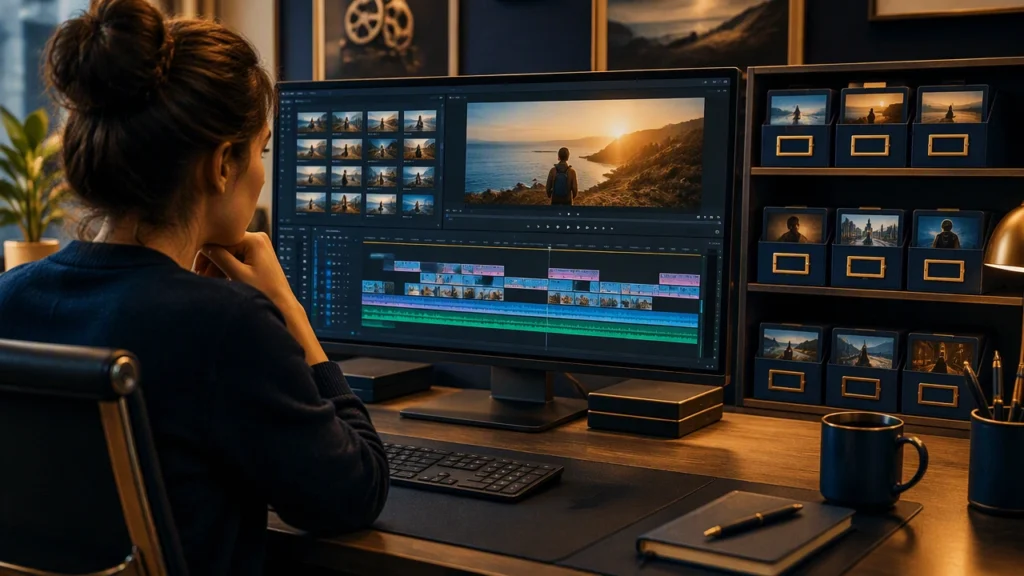
Film editing rarely slows down because an editor lacks ideas. It slows down because the project has become difficult to search, compare, or trust. A clean structure does not make the story for you, but it removes friction every time you look for a line, a reaction, or an alternate take. This guide shows how to organize footage bins and timelines so you can move quickly without losing track of versions, sources, or creative choices.
Start with a naming system before importing
Decide on a folder and file convention before media enters the project. Use the same date format, camera code, and scene notation everywhere. A practical structure might separate 01_Camera, 02_Audio, 03_Graphics, 04_Proxies, and 05_Exports. Keep original media untouched. If a file needs correction, create a new version instead of overwriting the source.
Choose names that describe function rather than mood. INT_Kitchen_Dialogue is easier to scan than Good_Takes. Keep abbreviations consistent and short. If your team uses CU for close-up, use it everywhere. Avoid spaces and punctuation that behave differently across operating systems. Hyphens and underscores are reliable.
Build bins around decisions, not camera cards
Camera folders are useful for copying and verification, but they are rarely useful during an edit. After ingest, organize media into bins that answer the questions you ask while cutting: what scene is this, what kind of shot is it, and is it usable?
- Scenes: divide the project by scene or sequence, then place dialogue, coverage, and inserts inside each scene.
- Shot type: keep optional bins for wide, medium, close-up, macro, or establishing shots when coverage is large.
- Audio: separate production sound, music, sound design, and reference mixes so you do not search through everything.
- Graphics: store titles, logos, lower thirds, and temporary placeholders in their own area.
- Selected: maintain a bin of approved takes or preferred clips for fast access during assembly.
Do not create a bin for every possible idea. Too many empty categories make the project feel heavier. Add a bin only when you repeatedly search for the same type of material.
Use labels that reveal information at a glance
Labels should support fast scanning in the media pool and timeline. Use color for a small number of stable categories, such as dialogue, music, effects, and graphics. Use markers for notes that belong to a moment: a missing frame, a pronunciation issue, or a line that may be trimmed later.
Keep metadata simple and consistent. Record scene, take, camera, lens, and sound status only when those fields will help you make a decision. A short note like clean, alt line, or room tone can save a long playback later. Avoid decorative labels that look organized but do not change how you edit.
Create proxies for smooth review and travel work
Proxies are smaller copies of your media that play more easily on a laptop or during remote review. They are especially helpful with high-resolution camera files, long interviews, or projects with many layers. Keep the original files as the source of truth. Create proxies with a clear naming link, then switch between full-resolution media and proxies without changing your timeline.
Choose a proxy codec that favors playback over quality. Make sure audio stays aligned and that timecode is preserved when possible. Test a short sequence before transcoding the entire project. Check that the proxy matches the frame rate, aspect ratio, and reel name. When the edit is complete, relink to original media and confirm that every clip still points to the correct source.
Organize timelines as a chain of decisions
Give sequences names that explain their purpose: Assembly_v01, Scene_04_Tight, or Client_Review_03. Keep a master sequence that represents the current best cut, and use duplicate sequences for experiments. Never make a risky change in the only version that contains your best work.
Inside a sequence, separate tracks by function. Keep dialogue on predictable tracks, place music and effects below picture, and reserve a track for titles or temporary graphics. This makes it easier to mute, lock, or copy a layer without disturbing the rest of the edit. Use markers for scene starts, required trims, and review notes.
Keep versions visible
Use a consistent version number and date. When a version is approved, duplicate it before revising. Archive old sequences rather than deleting them immediately. A simple naming pattern lets anyone on the team understand which cut is current without opening every timeline.
Protect the project with safe habits
Save often and keep automatic backups enabled. Store project files and media on reliable drives, and maintain a second copy in a different location. Before a major change, duplicate the sequence and export a reference movie or stills if the review depends on exact timing. Lock finished tracks when you are working nearby, and unlock them only when you need access.
Run a short health check before each review: confirm that media is online, proxies are not accidentally exported, frame rate matches the delivery target, and audio tracks are not muted. Check that the timeline has no hidden gaps, orphaned clips, or missing graphics.
Make the system part of the edit
The best organization is quiet. It should help you find a shot in seconds, compare two takes without confusion, and hand the project to another editor without a long explanation. Start with a simple folder plan, add bins only where they save time, keep labels meaningful, and treat timelines as saved decisions. With that foundation, film editing becomes less about searching and more about shaping the story.